Label design
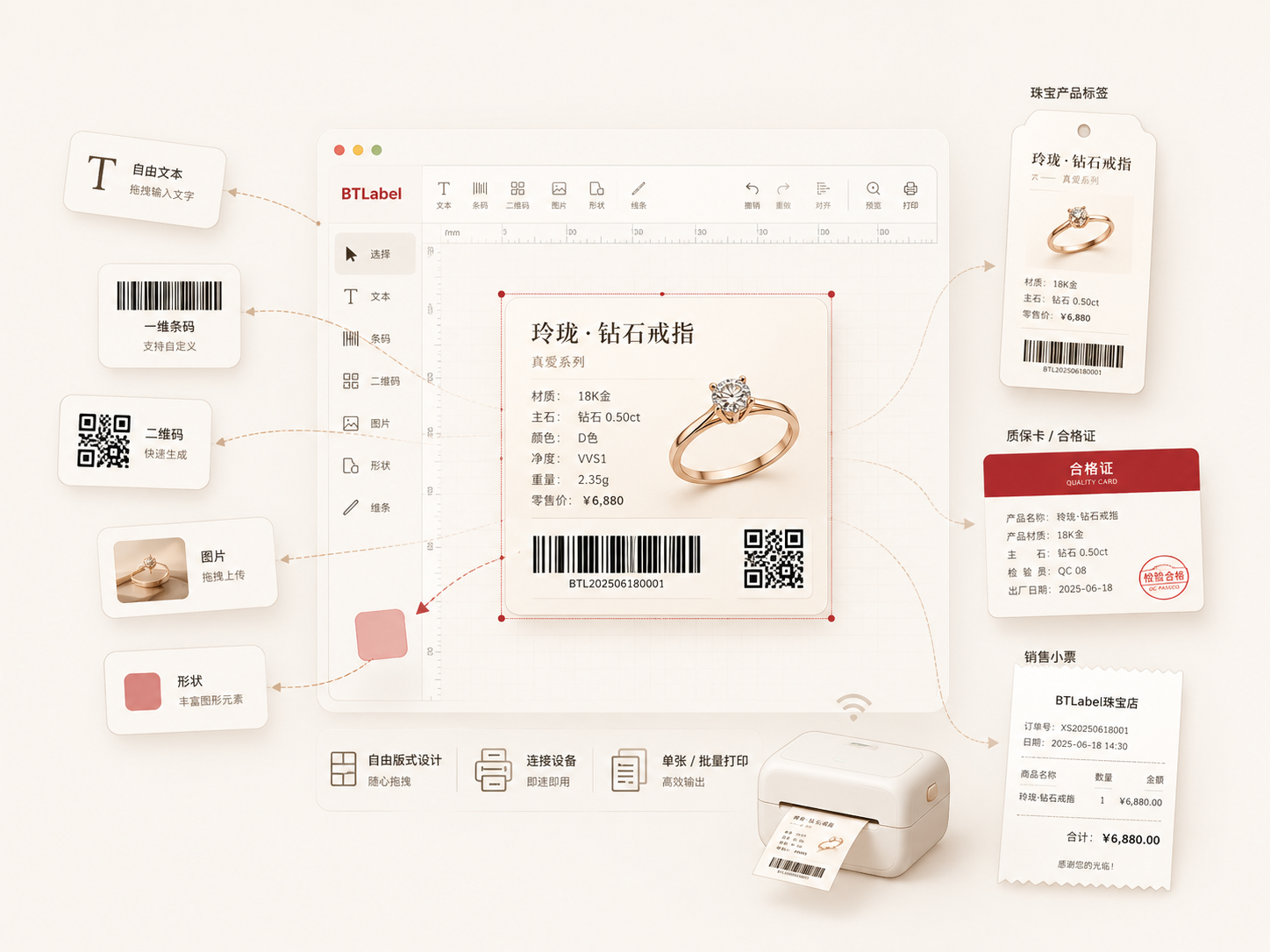
Arrange barcodes, QR codes, graphics, and text freely
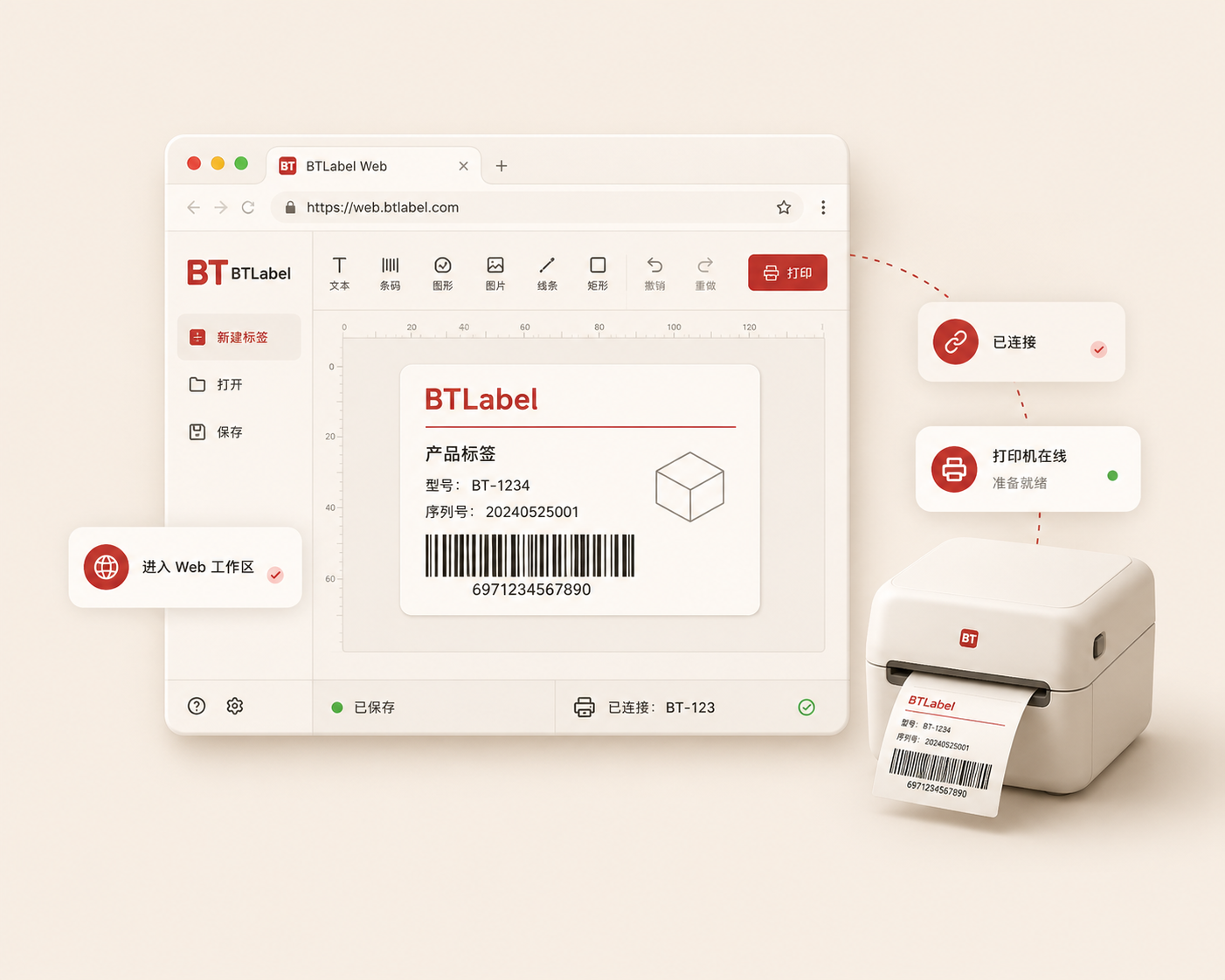
Arrange the layout through an element panel, canvas, and rulers without moving between layers of complex configuration.

BTLabel · Label design and printing
Open the web app, connect a supported printer, and drag elements into labels, barcodes, QR codes, warranty documents, and receipts. Keep it simple from one print to a batch.
Flexible design. Simple printing.
Visual design
Add barcodes, QR codes, graphics, and text freely, then connect each layout element with the underlying business data.
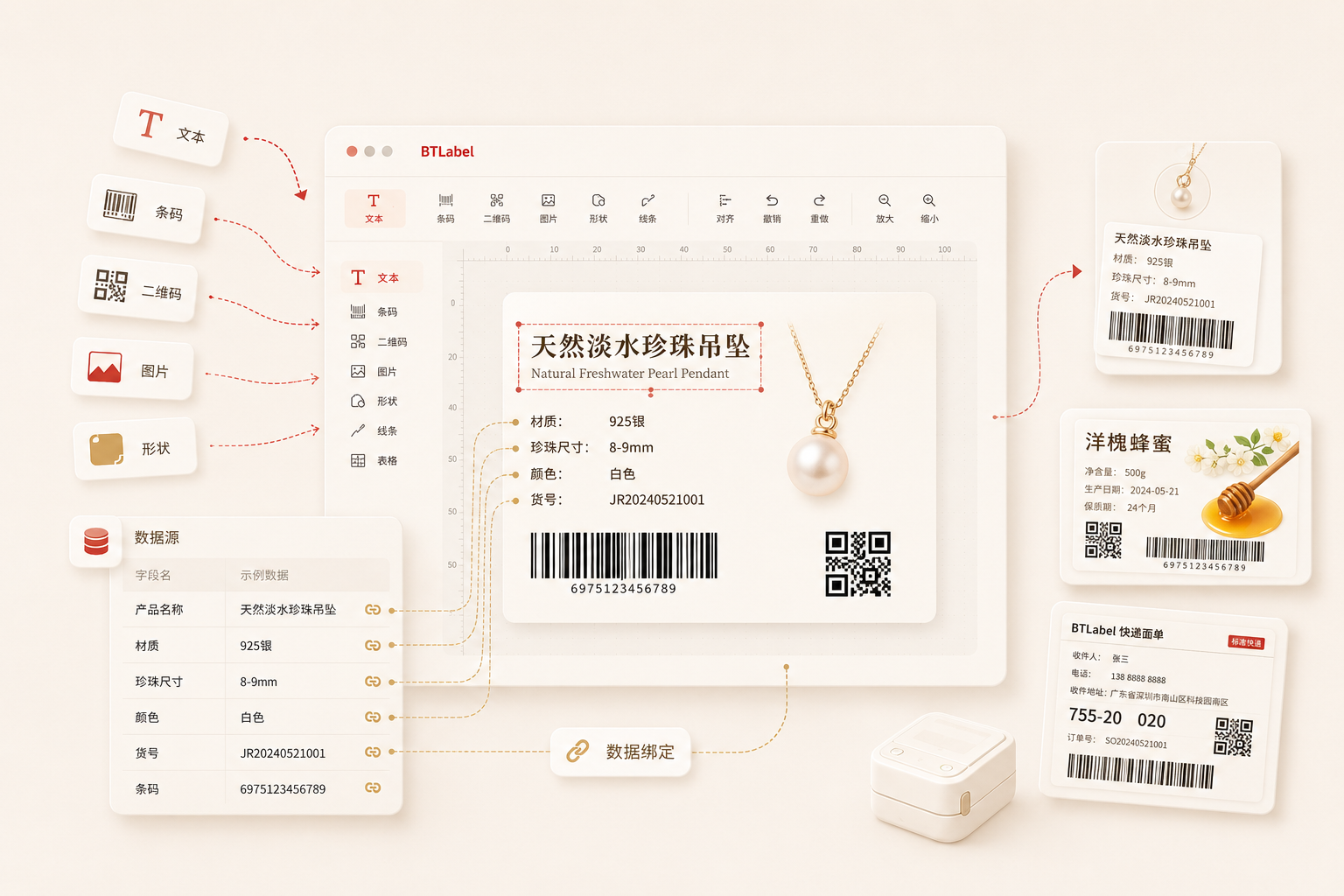
Drag elements onto the canvas and adjust their size and hierarchy.
Connect layout elements with product or business fields.
Use representative data to check the layout and print boundaries.
Confirm the device and job scope before single or batch output.
Label design
Arrange the layout through an element panel, canvas, and rulers without moving between layers of complex configuration.
Data binding
Connect text, barcode, and QR code elements with business fields and preview real data inside the layout.
Printing scenarios
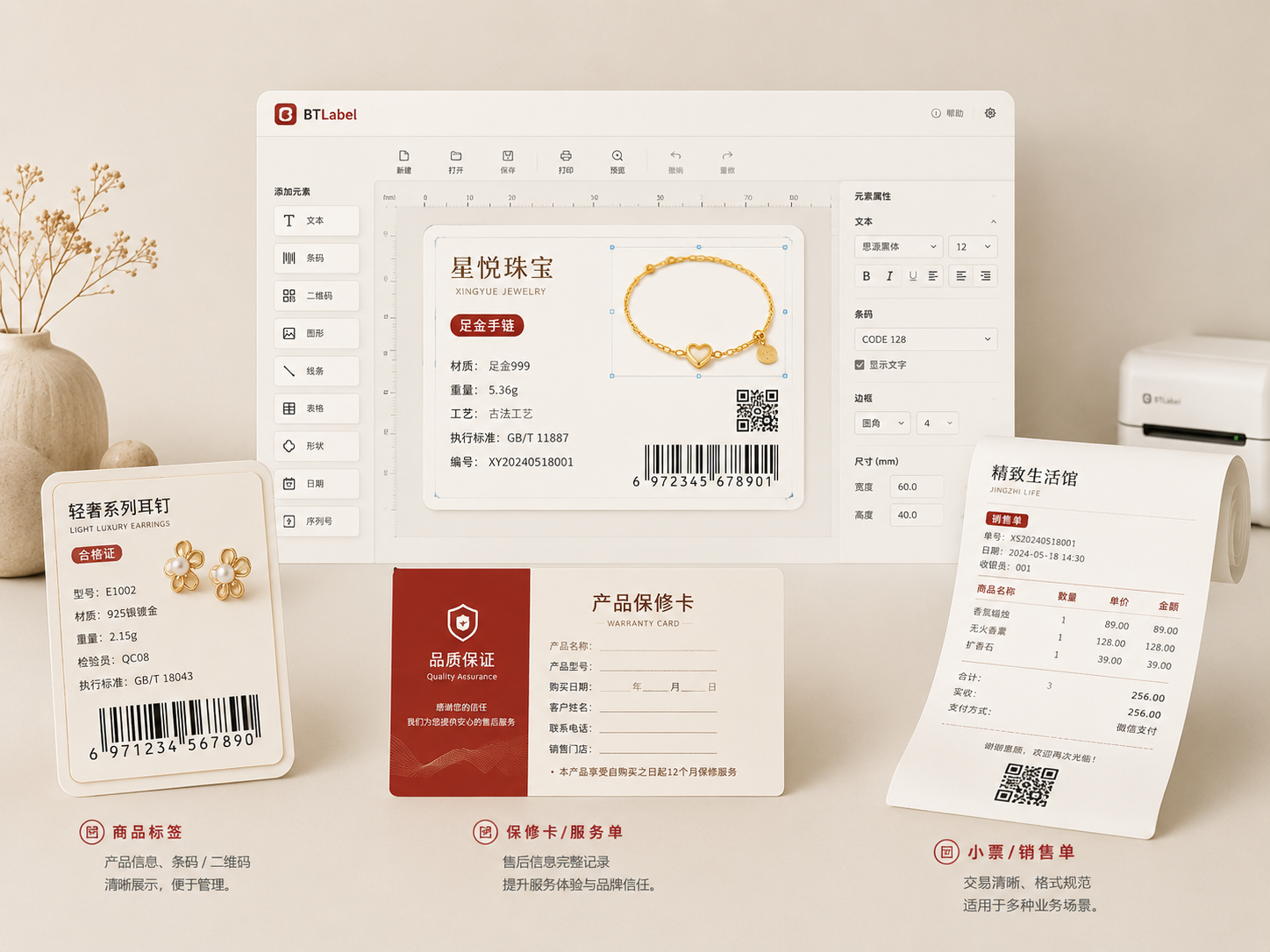
Design warranty documents, invoices, receipts, and other common business documents through the same clear printing approach.
Labels
Arrange barcodes, QR codes, graphics, and text around the underlying business data.
Warranty documents
Organize product, customer, and after-sales information into one clear document.
Invoices, receipts, and documents
Arrange invoices, receipts, and common business documents around the fields the work actually requires.
Lightweight runtime
Keep design and printing inside a lightweight web workspace and connect a supported device to begin. The verified compatibility list defines the exact range.
Batch printing
Process batch jobs together and reduce repeated work. Actual speed and reliability depend on the device, data volume, and connection method.
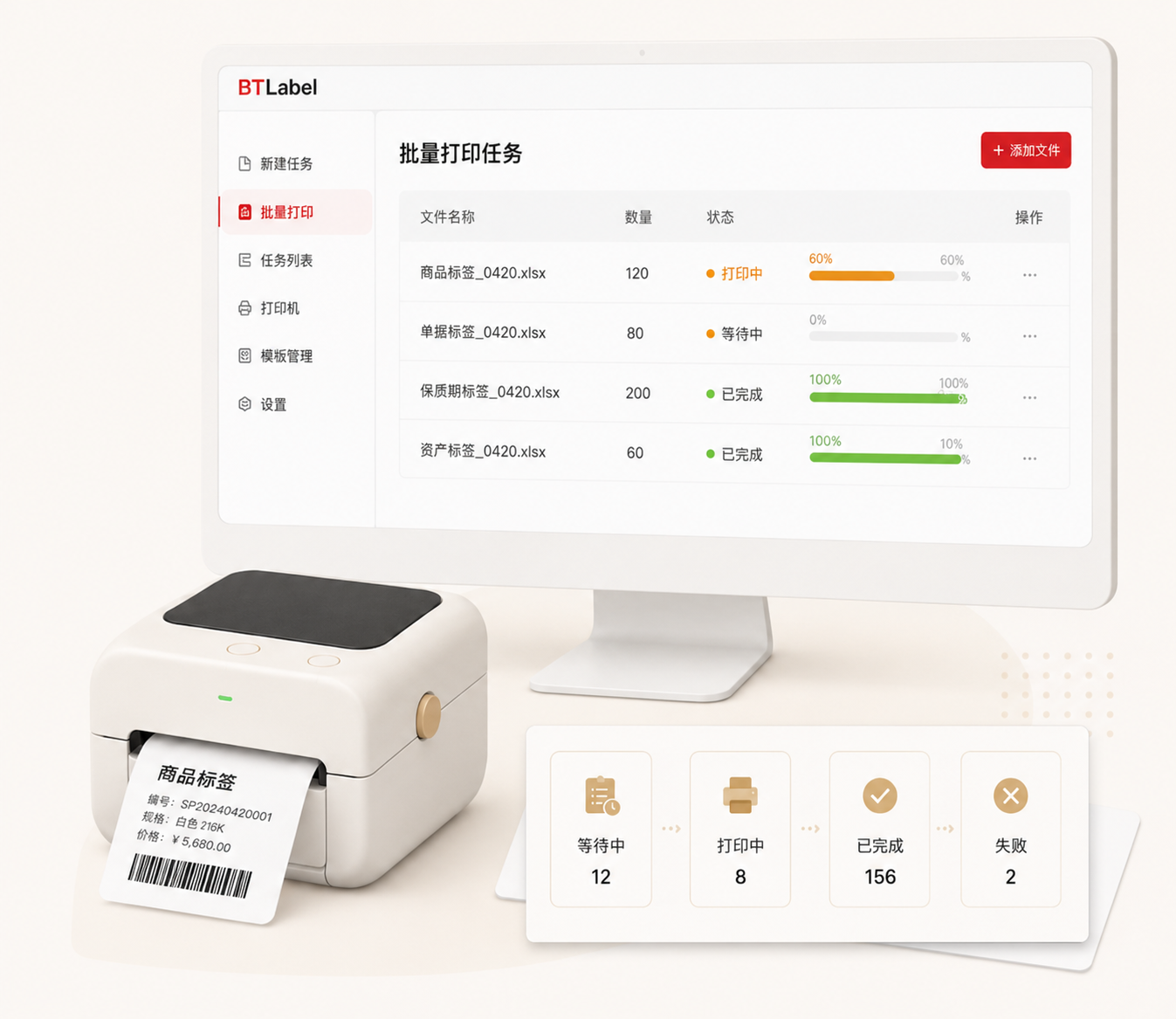
Retry failed items
Compatibility
Publish the verified printer, browser, connection, and format range so teams can make a clear decision before they begin.
Compatibility follows the official verified list. A device, browser, connection, or format not listed should not be treated as supported.
BTLabel · Label design and printing
Move from design and data binding to print preview through a lightweight process for labels and business documents.